Software review · partner · Algo Trading Space ·
Algo Trading Space Account Tracker review
A read-only EA reports balance, equity and every trade; the web app turns that into curves, drawdown statistics, per-EA results and alerts. We used the tracker with 40 real MT4 and MT5 accounts and show every view with a screenshot.
- 5 accounts free for good
- 14 days of Pro included
- no credit card
Verdict
The most complete MT4/MT5 tracker we know for EA portfolios, with a learning curve.
If you run several EAs on several accounts, you get answers here that MetaTrader and the usual free trackers do not give: results per magic number, drawdown as episodes, connection drops, prop-firm limits and a check against the backtest. The price is a dense interface in English and features that only unlock with Pro.
Suits you if …
- ●Yes: You run several EAs, accounts or brokers and want to watch them in one place.
- ●Yes: You trade prop-firm challenges and want to see daily loss and overall limit live.
- !Caution: You need a public, verified track record to sell signals: Myfxbook is better known for that.
- –No: You trade manually on one account and only need the monthly return: MetaTrader is enough.
Evidence behind this verdict
- 40 accounts in the test loginMT4 and MT5, six brokers, read on 2026-11-06
- 19 views clicked throughread-only, no settings changed
- Product page and API docsprices and plans as of 2026-11-06
What the Account Tracker is
The Account Tracker is a trading journal and monitoring dashboard for MetaTrader 4 and 5. Algo Trading Space says it built the tool for its own accounts after other trackers lost connections or could not tell one EA from another. According to the product page it now follows 113 accounts of the ATS team and 127 accounts of VIP Club members.
The principle is simple: you attach a small EA, the ATS Terminal EA, to one chart per account. It reads the account through MetaTrader’s own functions and sends balance, equity, open positions and closed trades to the server every few minutes. It never opens, changes or closes a trade, and it never sends a password. The web app at tracker.algotradingspace.com turns this into curves, metrics, breakdowns and alerts, on a computer or a phone.
That sets the tracker apart from services that log in to your broker with the investor password. It cuts both ways: you hand out no credentials (more in our guide using the investor password safely), but the tracker only sees what a running terminal reports. A home PC that goes to sleep pauses the recording. For EAs that run around the clock a VPS is a must anyway.
Setup in four steps
Setup needs no coding. ATS speaks of about ten minutes; for a single account that is realistic, and for a VPS full of terminals the install script helps.
- Order the free tracker in the ATS shop (€0, no card) and sign in at tracker.algotradingspace.com with your ATS login.
- Download the EA and set file under Settings › EA Configuration. The set file already holds your User ID and Access Key, so nothing has to be typed.
- Allow WebRequest in MetaTrader under Tools › Options › Expert Advisors and add https://algotradingspace.com. Then drag the EA onto a chart and load the set file.
- Wait for the first report. Balance and equity appear within minutes, the history follows. The EA reports every two to five minutes.
For a VPS with many terminals there has been a PowerShell command since version 3 (Auto-discover terminals, still in beta): it finds every MetaTrader terminal, installs the EA with your credentials and attaches it to a chart of its own. A background check runs every ten minutes and after each Windows logon and re-attaches the EA if a restart lost it. According to the version 3.1 changelog the install script now ticks the WebRequest box itself. How to set up MetaTrader on a server is covered in setting up a VPS for MetaTrader.
The dashboard: every account on one page
The start page is called Overview. At the top sits a watch list for the accounts you want to keep in view, below it the totals across all accounts and a table with each account. In our test 40 accounts at six brokers were connected; the page stayed responsive.
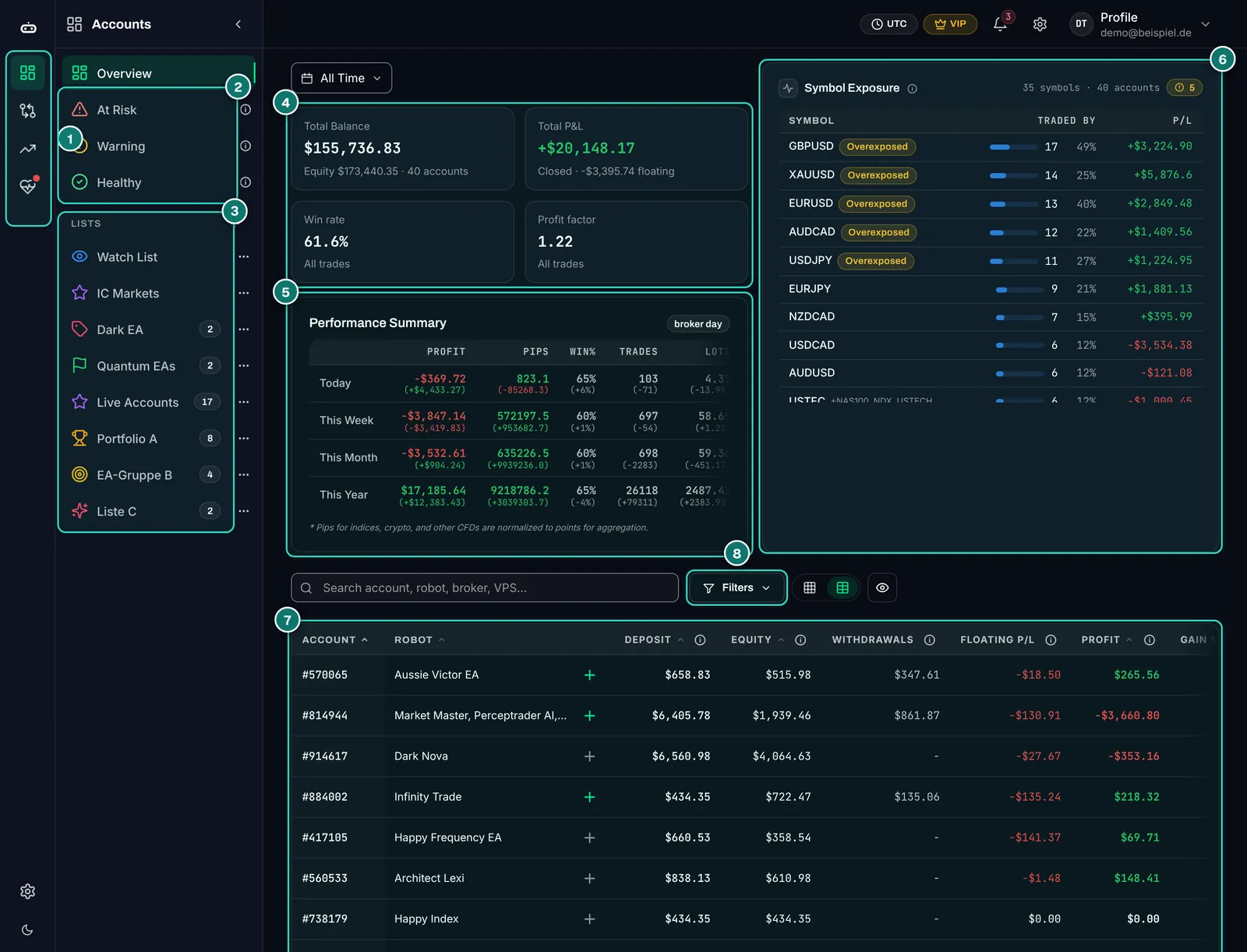
- 1. Main navigation: Accounts, Screener, Analytics and Monitoring. Settings sit at the bottom of the same rail.
- 2. Status filters: At Risk, Warning and Healthy sort accounts by the risk levels you set in the settings (Risk Categories).
- 3. Your own lists with counts, for example per broker, EA family or client. An account can be in several lists.
- 4. Totals for the chosen period: balance, profit with floating result shown separately, win rate and profit factor.
- 5. Performance Summary: today, this week, this month, this year, each with the change against the previous period in brackets. “broker day” means days on the broker’s server clock.
- 6. Symbol Exposure: how many accounts trade the same symbol. “Overexposed” warns when too many EAs sit on one pair.
- 7. Account table with deposits, equity, withdrawals, floating result, profit and return, sortable. The plus adds an account to the watch list.
- 8. Search and filters by account, robot, broker or VPS, next to the card/table switch and the eye for privacy mode.
The privacy switch (the eye next to the filters) is useful day to day: it hides account numbers and names on every page when you share your screen. For screenshots like the ones in this report we still masked everything ourselves, because the switch does not hide amounts.
The account view: 30 metrics and eight tabs
Clicking an account opens its detail page. It is the heart of the tracker and shows in five columns what an account has achieved and how risky it was along the way. Every metric has an info icon with a short explanation; if terms like Ulcer index or expected shortfall are new to you, there and in our guide to trading metrics you will find an explanation.
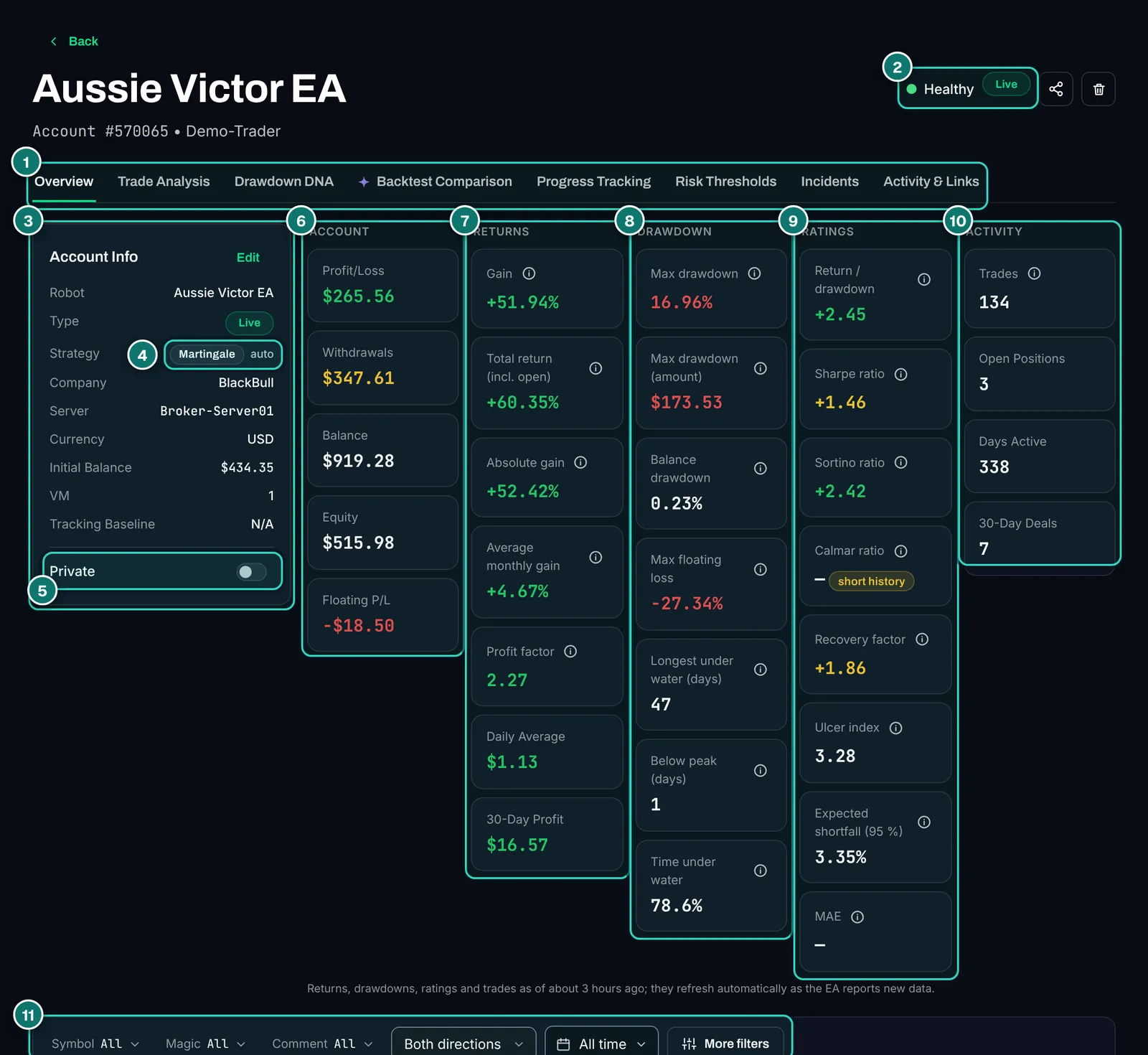
- 1. Eight tabs: Overview, Trade Analysis, Drawdown DNA, Backtest Comparison, Progress Tracking, Risk Thresholds, Incidents and Activity & Links.
- 2. Status and account type: Healthy, Warning or At Risk per your risk levels, plus Live, Demo or Instant Funding.
- 3. Account Info: assigned robot, broker, server, currency, starting capital and the VPS the terminal runs on (VM).
- 4. Strategy detection: the tracker tags the account from its own trades, here as martingale (“auto”). According to the product page there are also trend, breakout, grid, scalper, intraday and swing; you can override the tag.
- 5. Private switch: keeps the account out of public views and shared links.
- 6. Account: profit, withdrawals, balance, equity and floating result.
- 7. Returns: return with and without open positions, absolute return, monthly average, profit factor, daily average and profit of the last 30 days.
- 8. Drawdown: maximum drawdown in percent and amount, balance drawdown, largest floating loss, longest time under water and share of time below the peak.
- 9. Ratings: return to drawdown, Sharpe, Sortino, Calmar (with a note when the history is too short), recovery factor, Ulcer index, expected shortfall and MAE.
- 10. Activity: number of trades, open positions, active days and deals in the last 30 days.
- 11. Filter bar: symbol, magic number, comment, direction and period. A filter applies to the whole page, curve and metrics included.
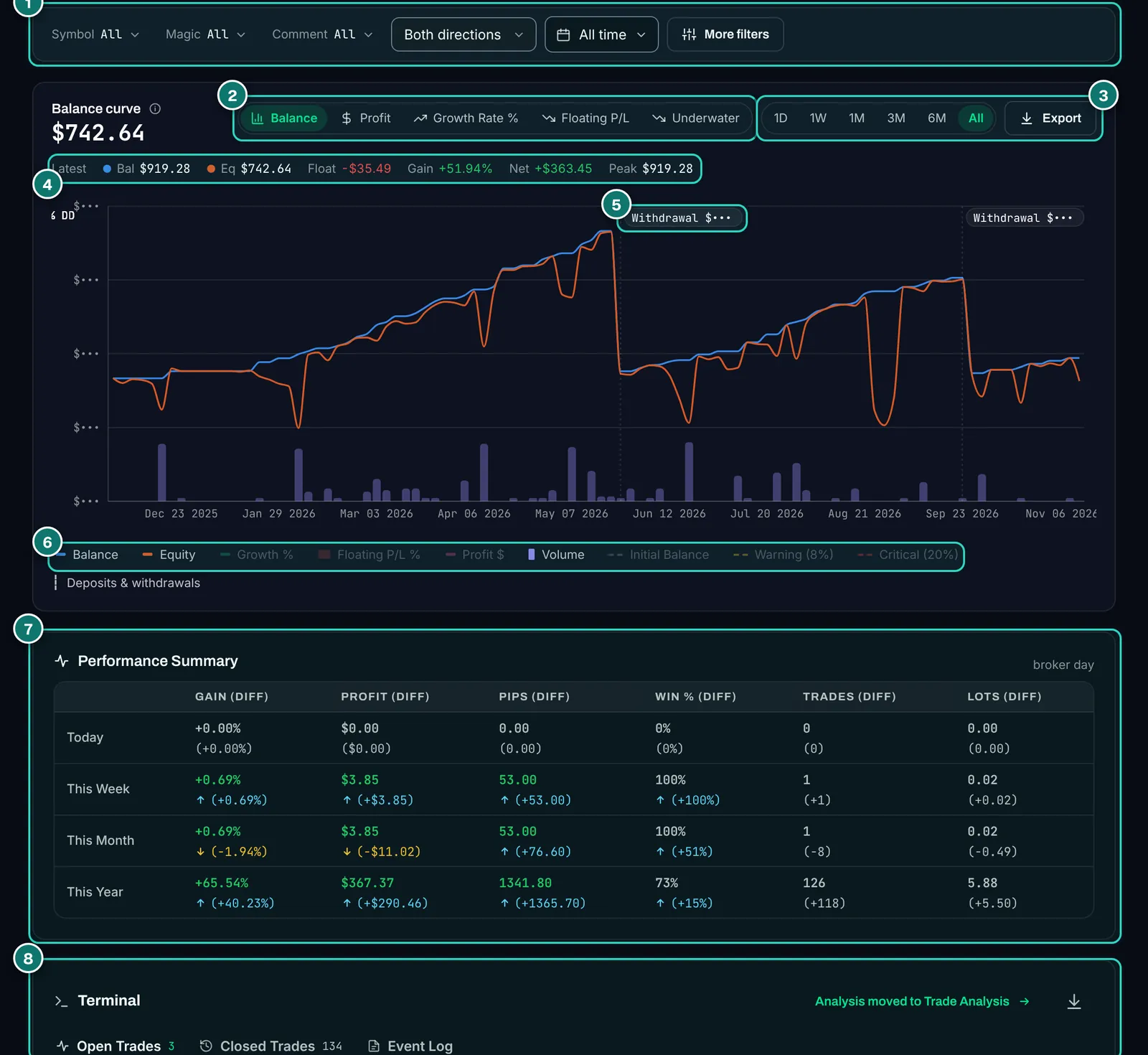
- 1. The same filter bar stays at the top while you scroll.
- 2. Curve modes: balance, profit, growth in percent, floating result and an underwater view (distance from the last high).
- 3. Period from one day to the full history, next to an export of the curve data.
- 4. Latest values of balance, equity, floating result, return, net and peak in one line.
- 5. Deposits and withdrawals are drawn as vertical markers, so a jump in the curve does not look like a loss.
- 6. Legend with starting capital and the warning and critical lines from your risk levels, each can be toggled.
- 7. The account’s Performance Summary: return, profit, pips, win rate, trades and lots per period, with an arrow for the direction against the previous period.
- 8. Terminal: open and closed trades and an event log. Since EA version 3.1 it also shows stop-loss and take-profit changes, partial closes and the reason a position closed, per the changelog.
A detail you only come to value in daily use: history from before the EA was attached is rebuilt from the trades and marked as reconstructed (vendor claim). So the curve does not start on the day you installed it.
Trade Analysis: which EA makes the money
For EA traders the key feature is the split by magic number. Every EA tags its orders with a number of its own; the tracker groups by it and gives each robot on an account a result of its own. If three EAs share one account, you see at once which one carries and which one drags. Why that matters is explained in our guide to magic number statistics.
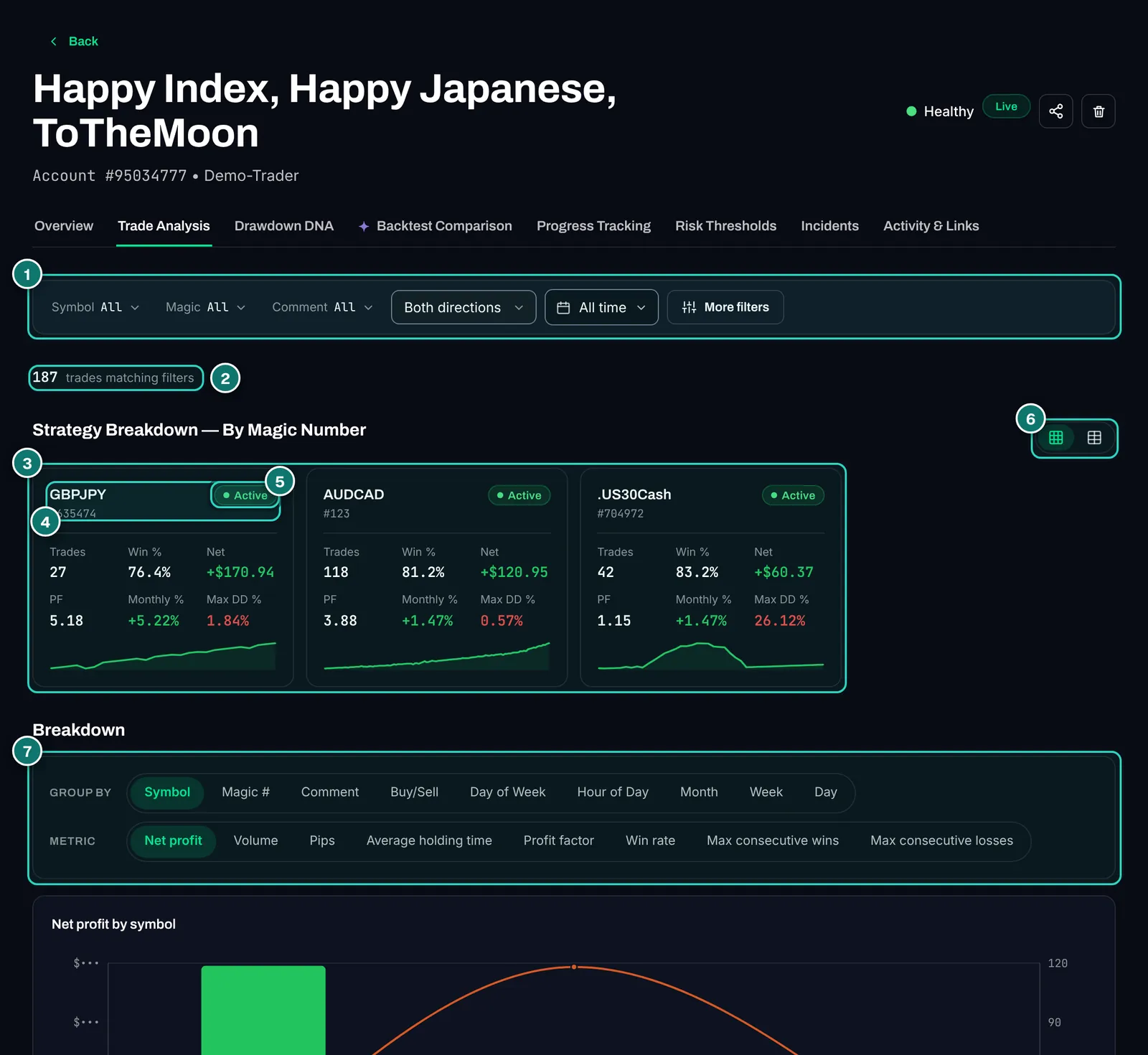
- 1. Filters as on the overview; every choice applies to all cards and charts below.
- 2. Number of trades that match the current filter.
- 3. Strategy cards: one card per magic number with trades, win rate, net, profit factor, monthly return, maximum drawdown and a mini curve.
- 4. Symbol and magic number of the EA. A click filters the whole page to this robot.
- 5. Active or inactive: strategies that stopped trading are marked by the tracker itself.
- 6. Switch between cards and table.
- 7. Breakdown: group by symbol, magic, comment, buy/sell, weekday, hour, month, week or day, with a metric of your choice.
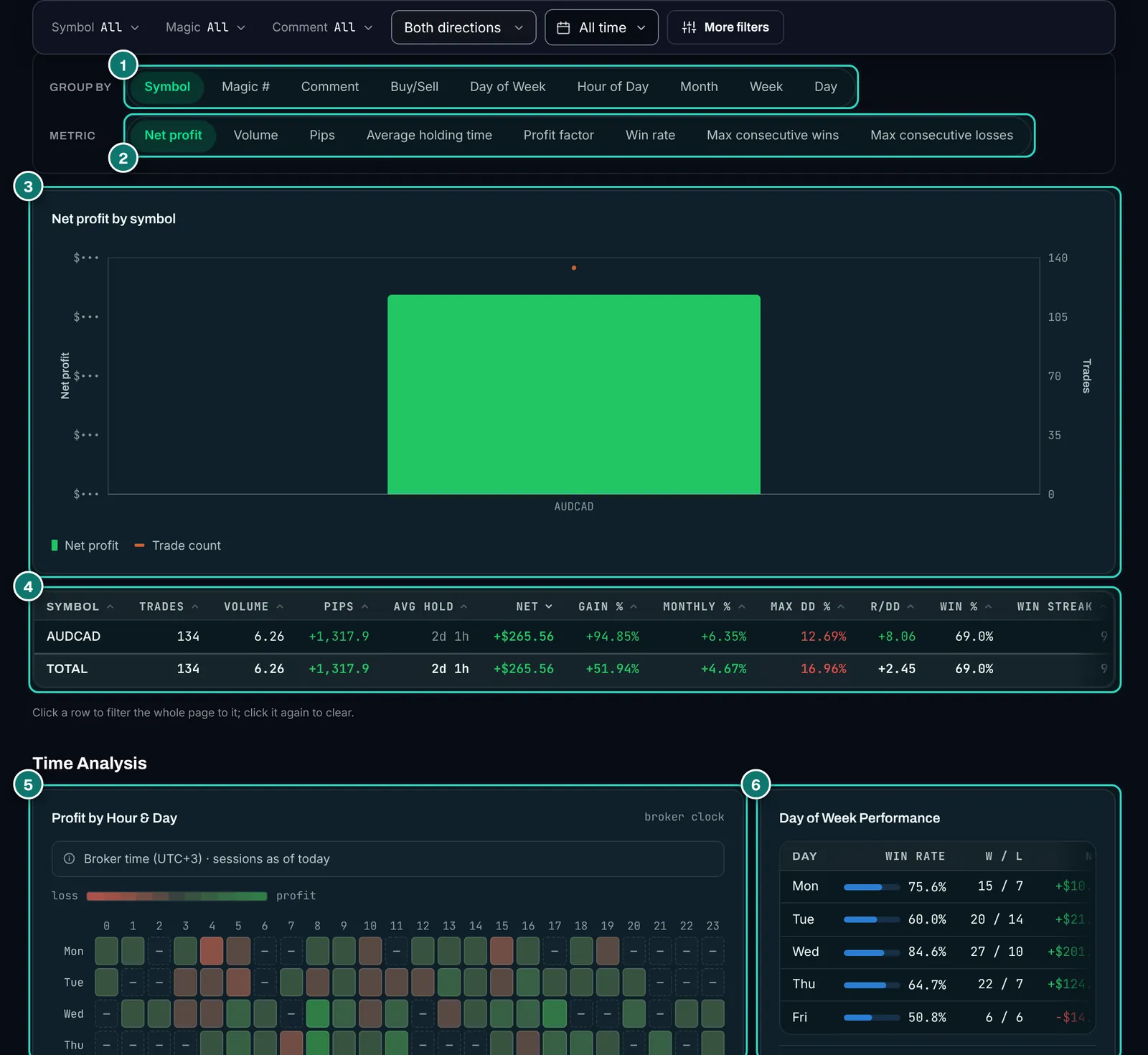
- 1. Group by nine attributes.
- 2. Metric for the chart: net, volume, pips, holding time, profit factor, win rate or streaks.
- 3. Chart with net result and number of trades per group.
- 4. Table with trades, volume, pips, holding time, net, return, monthly return, drawdown, return to drawdown, win rate and streak. A click on a row filters the page.
- 5. Heatmap by hour and weekday on broker time, with a note on the time zone. According to the product page the Asian, London and New York sessions are marked.
- 6. Weekdays with win rate, winners to losers and result.
Below the heatmap the product page lists best and worst day, risk-reward and MAE charts, win and loss streaks and the monthly cost of swaps and commissions. The costs in particular are often the difference between backtest and live account for EAs with many small trades, see why EAs fail live.
Drawdown DNA: setbacks as episodes
Maximum drawdown is one number and says little about how an account feels. Drawdown DNA splits the history into episodes: when the account stood at its high, when it hit bottom, when it was back up, and how long each phase took. You see whether an EA falls rarely but for long, or often but briefly. It is a Pro feature.
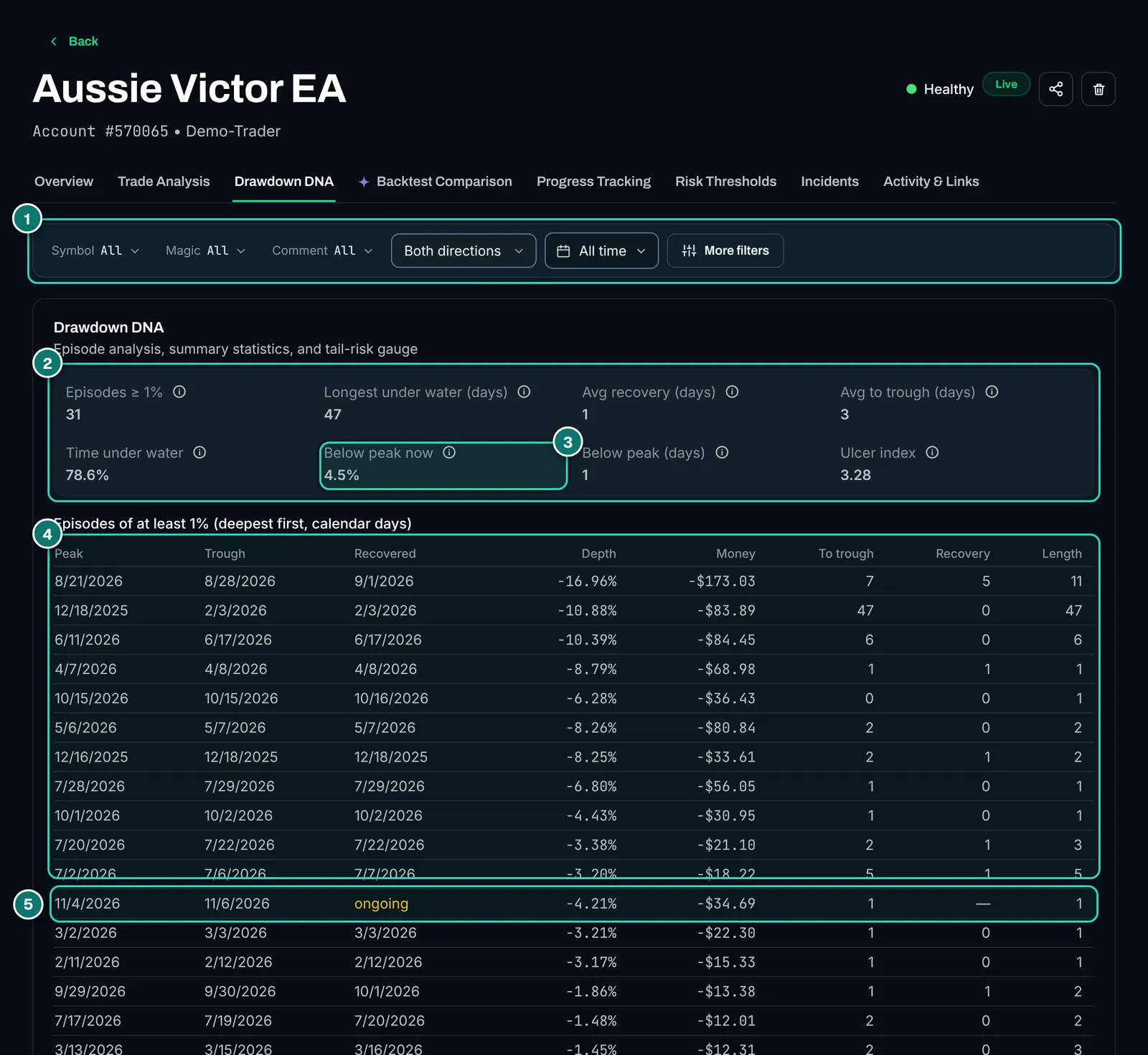
- 1. Filters here too: Drawdown DNA can be narrowed to a single EA or symbol.
- 2. Summary: episodes of 1 % and more, longest time under water, average recovery and time to trough, share of time below the high, Ulcer index.
- 3. Below peak now: how far the account currently sits below its high.
- 4. Episode table, deepest first: peak, trough, recovery, depth in percent and amount, days to trough, days of recovery and total length.
- 5. Running episode: “ongoing” marks a setback that has not been recovered yet.
According to the product page there is also a tail-risk gauge and a short reading guide for each figure. How to judge drawdown phases is covered in our guide the equity curve explained.
Progress Tracking for prop-firm accounts
For challenges and funded accounts you enter profit target, daily loss limit and overall loss limit once. The tracker then shows as bars how much is achieved and how much of each limit is used. Open positions count, the way prop firms measure it; a trailing daily drawdown with its own reset hour can be switched on.
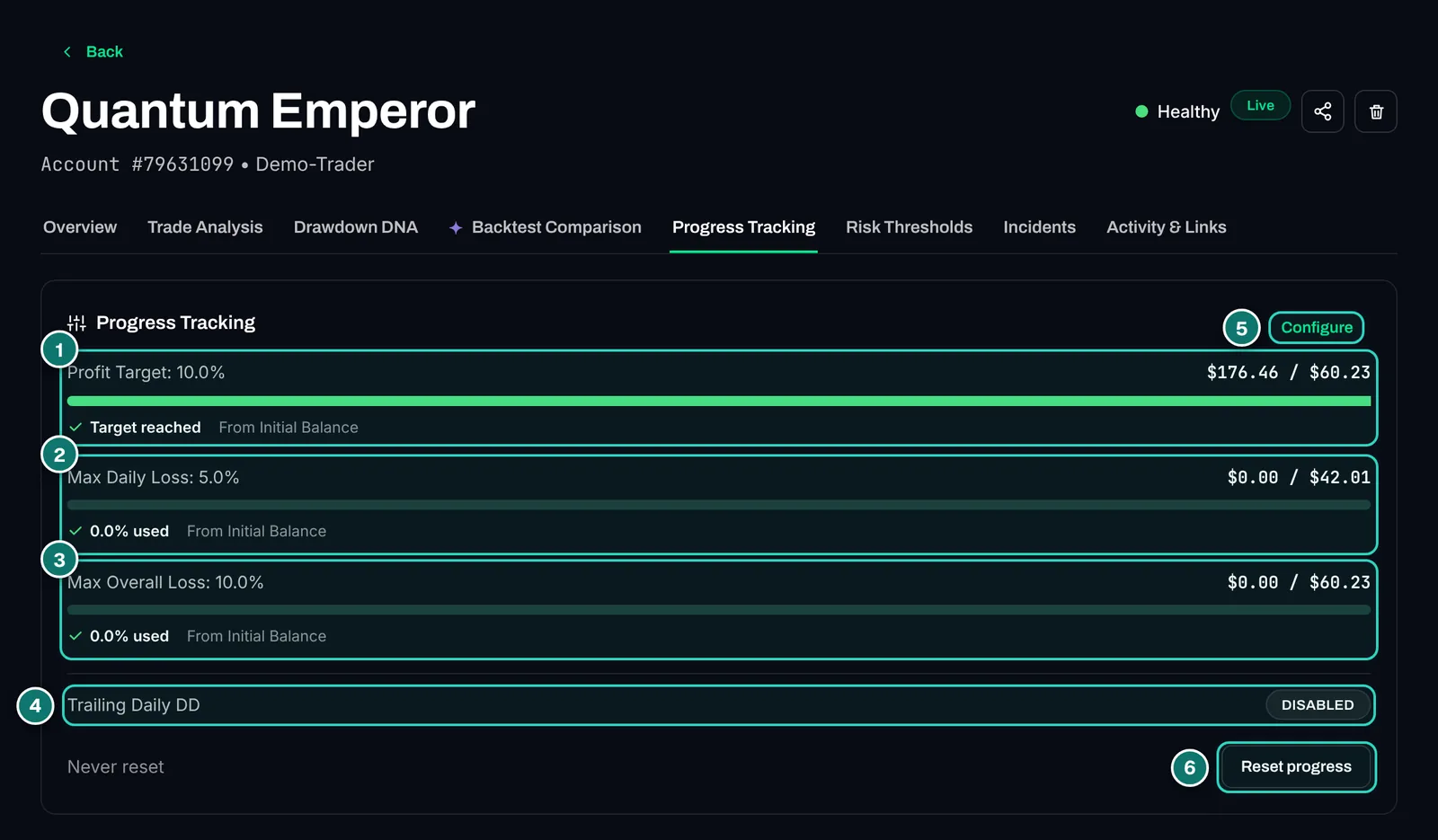
- 1. Profit target with progress bar and “Target reached”, measured from starting capital.
- 2. Maximum daily loss: share of the daily limit used.
- 3. Maximum overall loss: share of the overall limit used.
- 4. Trailing daily DD: trailing daily drawdown, switched off here.
- 5. Configure: set the rules per account.
- 6. Reset progress: restarts the count, for example for a new challenge phase.
Important: the tracker shows the rules; it does not enforce them. It closes no trades when a limit gets close. If you want to protect a challenge actively, you need an equity guard in the terminal as well, see daily loss limit and passing a prop-firm challenge with an EA. According to the product page challenge accounts are marked passed or failed by themselves.
Under Risk Thresholds you set your own warning and critical levels per account; otherwise the global risk levels from the settings apply. Incidents lists every connection drop of the account with its duration, Activity & Links shows last report, last trade and a timeline for your own notes.
Monitoring and alerts
An EA that has silently stopped often costs more than a bad trade. Under Monitoring › System Health the tracker shows how reliably the terminals report. Every gap in the EA’s heartbeat is stored as an event with its duration.
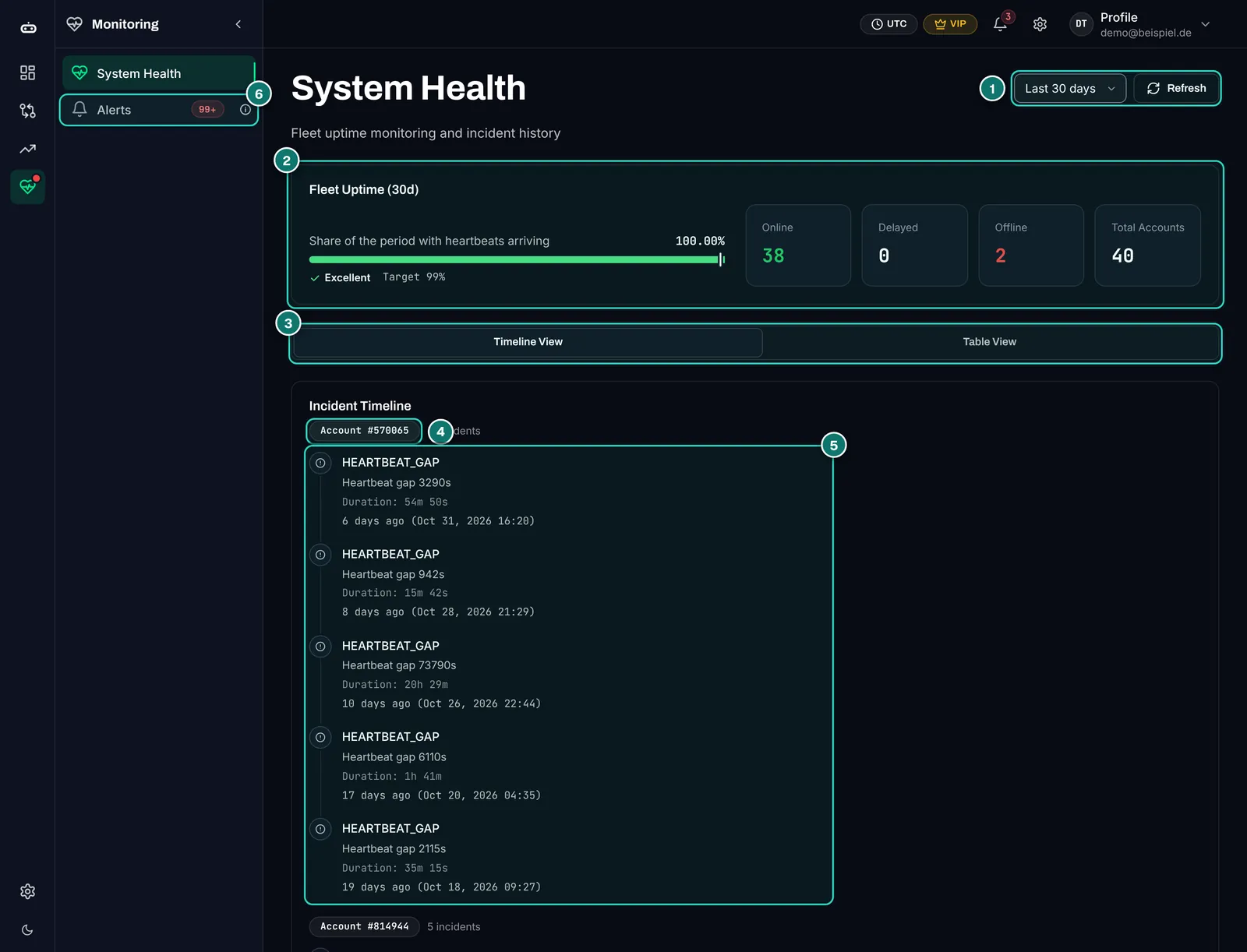
- 1. Period of 7, 30 or 90 days and manual refresh.
- 2. Fleet uptime: share of the period with reports arriving, against a 99 % target, plus online, delayed, offline and total.
- 3. Timeline or table as the incident view.
- 4. Account with the number of its incidents.
- 5. Incidents with type (heartbeat gap, connection lost), length of the gap, duration and time.
- 6. Alerts in the monitoring menu, with a counter of open alerts.
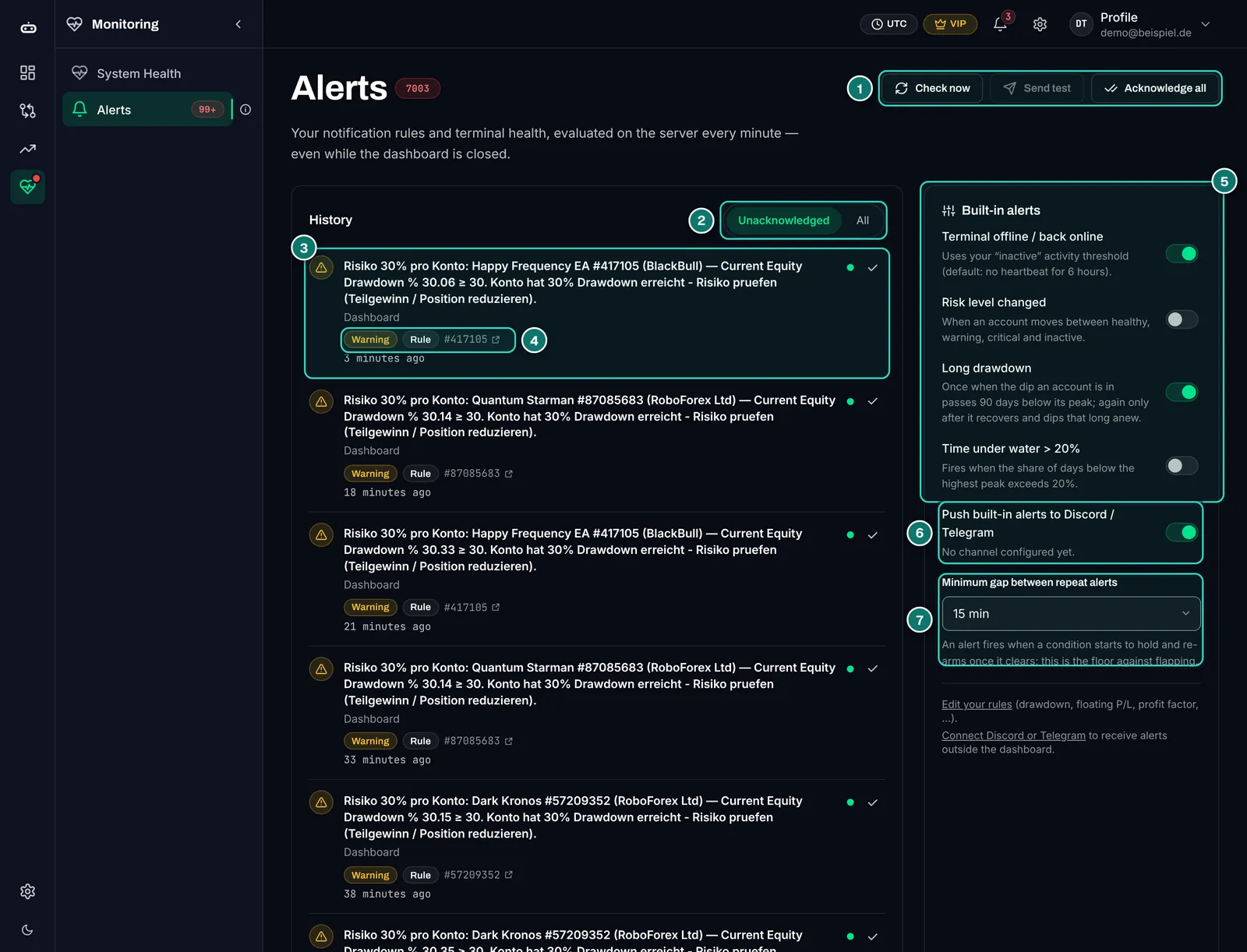
- 1. Check now, Send test, Acknowledge all: check the rules at once, send a test message, acknowledge everything.
- 2. Unacknowledged or All: open alerts or the full history.
- 3. A fired rule with text, account and value. Here a custom rule that warns at 30 % equity drawdown.
- 4. Severity and source: warning, rule and a link to the account.
- 5. Built-in alerts: terminal offline and back online, risk level changed, long drawdown (90 days below the high), time under water above 20 %.
- 6. Forwarding of built-in alerts to Discord or Telegram (Pro).
- 7. Minimum gap between repeat alerts, so a rule does not fire every minute.
The server evaluates the rules every minute, even with the dashboard closed. You can write your own rules on any metric, such as drawdown above 10 % or an account that stopped reporting. Alerts show in the dashboard on every plan; Discord, Telegram and browser notifications need Pro.
One observation from the test: a rule that hovers around its threshold produces a lot of entries. Our test account had more than 7,000 alerts in its history, almost all from a single drawdown rule. The minimum gap between repeats is therefore more than a convenience; set it generously.
Screener, analytics and reports
From about ten accounts on, the question is how EAs work together. The Screener (Pro) searches your real accounts for combinations that complement each other and suggests a weighting. We checked its filters and options but did not start a run, so as not to save anything in the operator’s account.
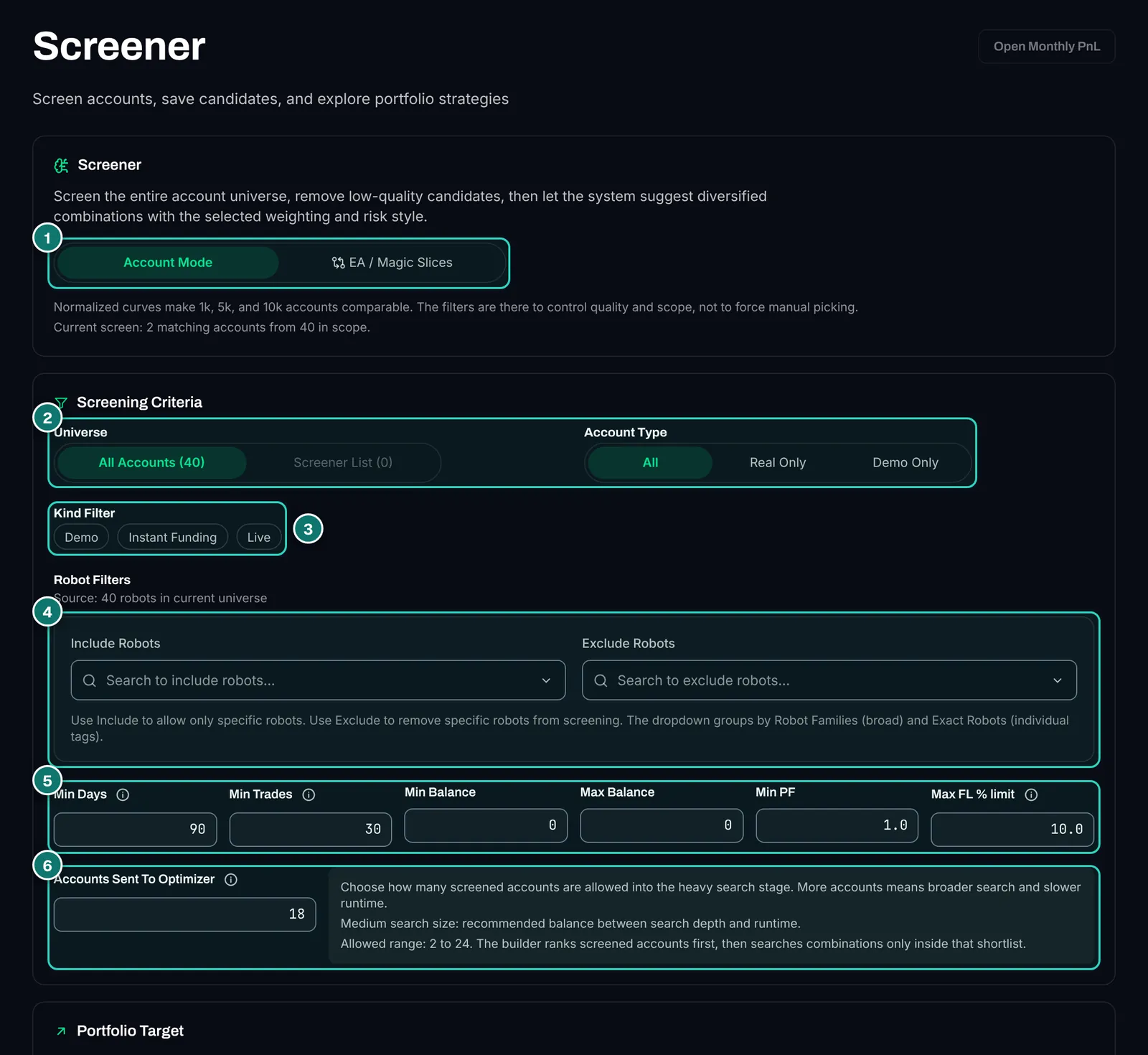
- 1. Mode: whole accounts or single EAs (magic slices) as building blocks.
- 2. Universe and account type: all accounts or a saved list, real only or demo only.
- 3. Kind: demo, instant funding, live.
- 4. Include or exclude robots, grouped by EA family and single robot.
- 5. Quality thresholds: minimum days, minimum trades, capital range, minimum profit factor and maximum floating loss.
- 6. Optimizer: how many pre-ranked accounts (2 to 24) go into the heavy combination search.
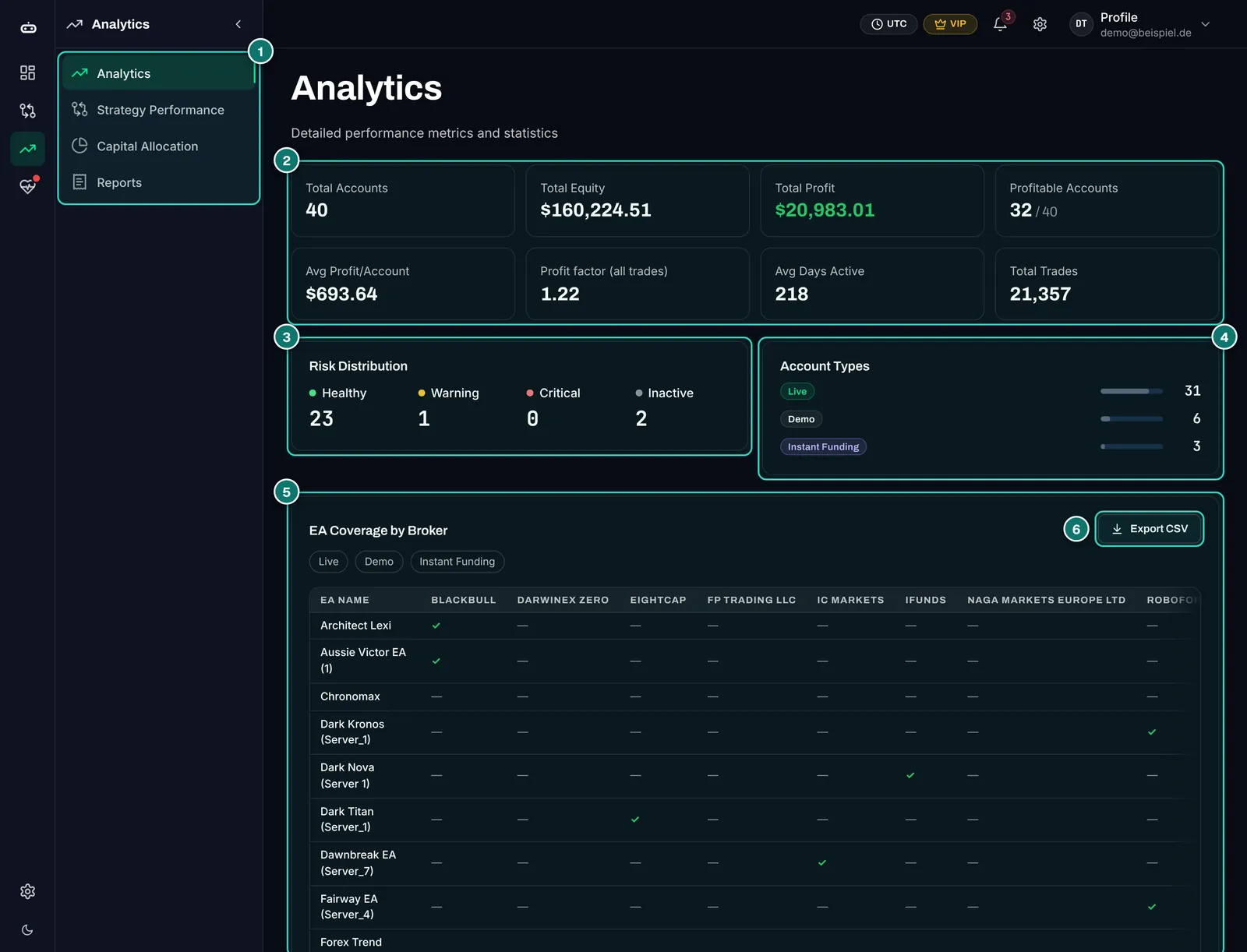
- 1. Sub-pages: Analytics, Strategy Performance, Capital Allocation and Reports.
- 2. Metrics across all accounts, from equity and profit to the number of trades.
- 3. Risk distribution by healthy, warning, critical and inactive.
- 4. Account types live, demo and instant funding.
- 5. EA coverage per broker: which EA runs at which broker, filterable by account type.
- 6. CSV export of the table.
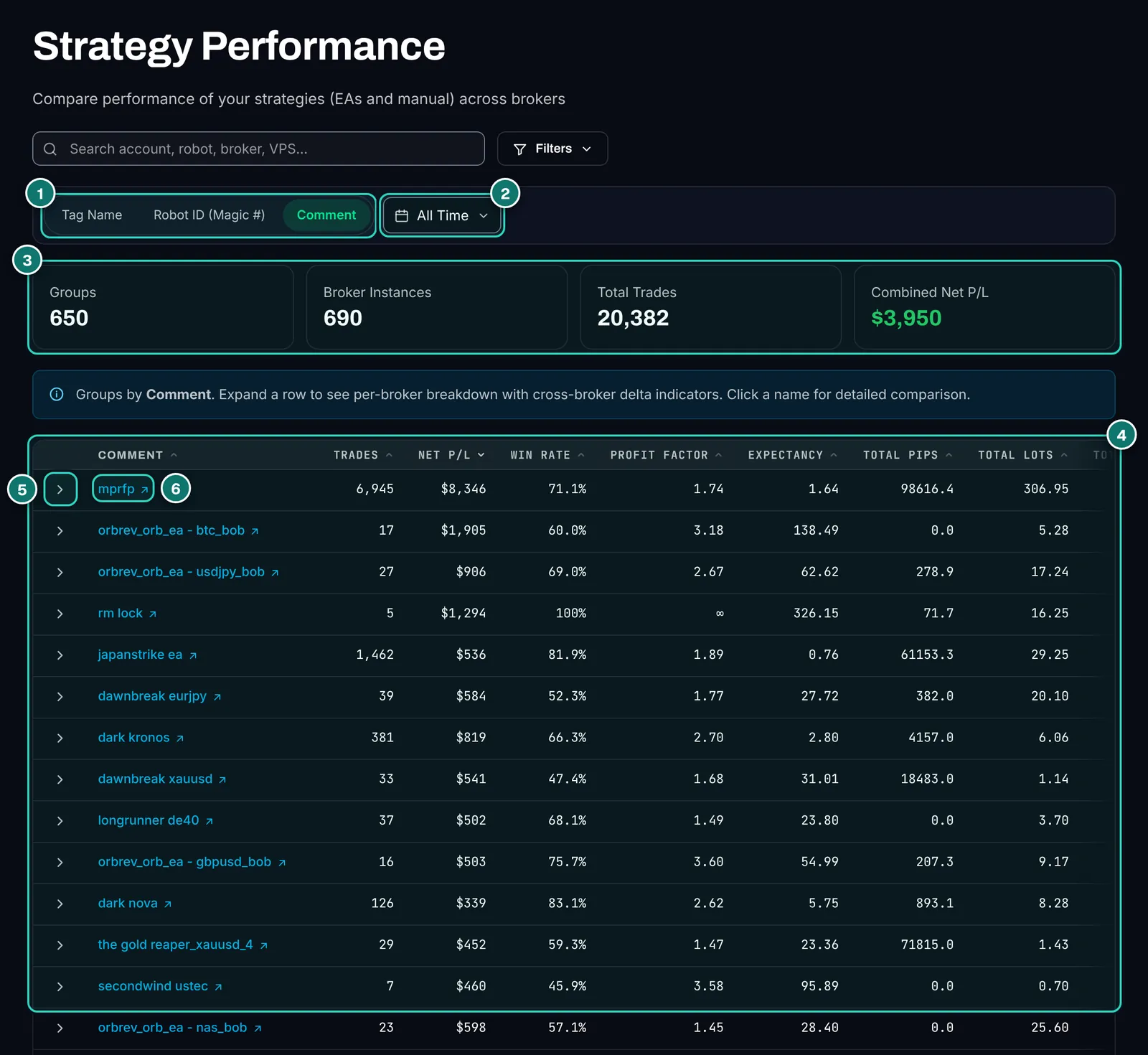
- 1. Group by robot name, magic number or order comment.
- 2. Period of the analysis.
- 3. Totals: groups, broker instances, trades and net over everything.
- 4. Table with trades, net, win rate, profit factor, expectancy, pips, lots and costs per strategy.
- 5. Expanding a row shows the same strategy per broker, with the differences between brokers.
- 6. Clicking a name opens the detailed comparison.
The cross-broker view in particular is rare: if the same EA runs at two brokers, you see directly whether spread, commission or execution make the difference. Capital Allocation shows how capital, deposits and withdrawals are spread across robots, brokers, servers and VPS. Reports freezes monthly snapshots and builds an annual overview for tax and accounting, each as a printable PDF. How to split an EA portfolio in principle is covered in our guide to EA portfolio management.
Settings, API and Claude via MCP
The settings hold the EA credentials, risk levels, notification rules, account types, security, shared links and display. Under Plan & Integrations you find API tokens, the MCP server and the alert channels.
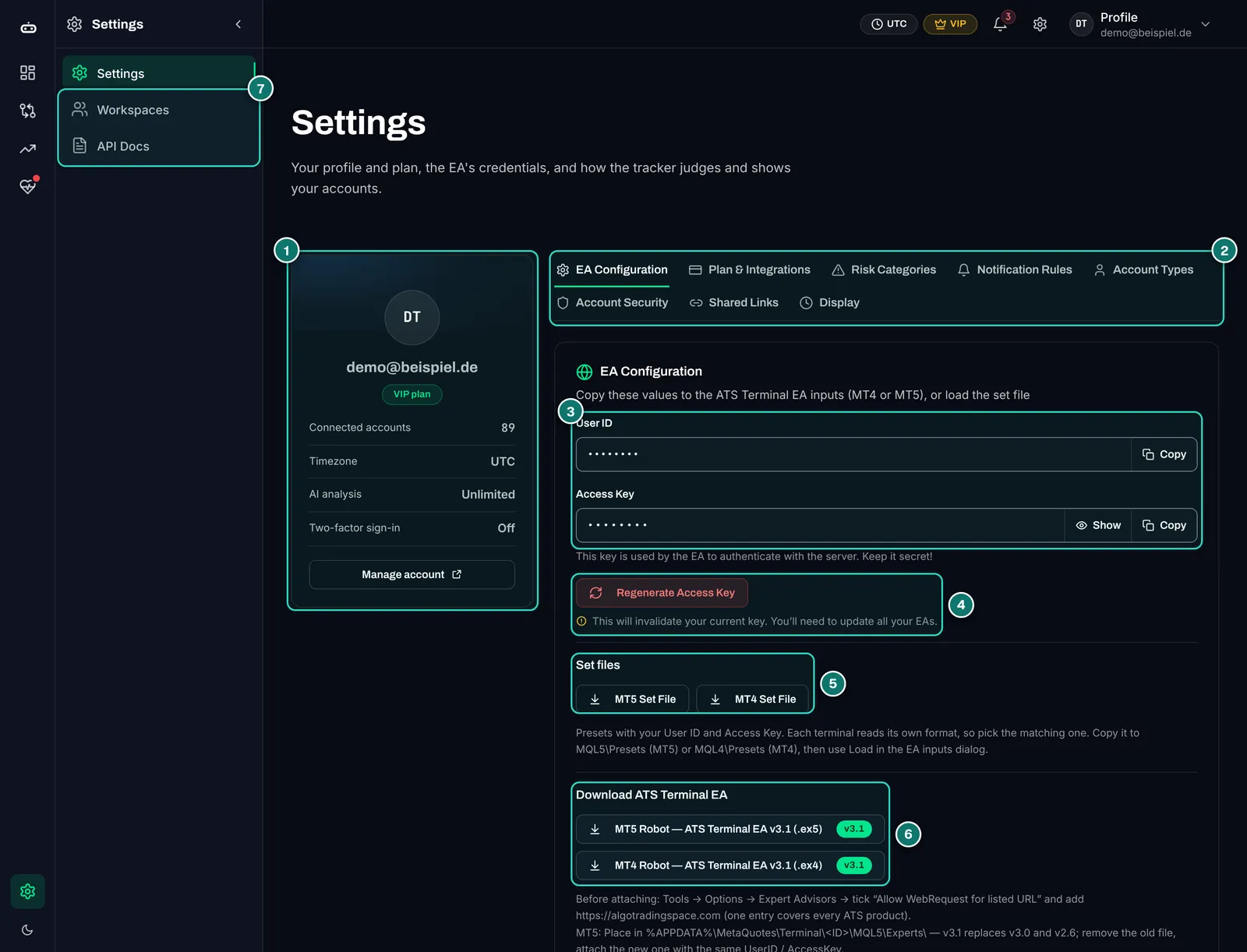
- 1. Profile: plan, number of connected accounts, time zone, AI allowance and two-factor sign-in.
- 2. Tabs: EA Configuration, Plan & Integrations, Risk Categories, Notification Rules, Account Types, Account Security, Shared Links, Display.
- 3. User ID and Access Key for the EA inputs. The key is hidden and only shown on click.
- 4. Regenerate Access Key invalidates the old key; afterwards every EA must be set up again.
- 5. Set files for MT5 and MT4 with both values already filled in.
- 6. ATS Terminal EA 3.1 for MT5 (.ex5) and MT4 (.ex4), below it the instructions for WebRequest and the install folder.
- 7. Workspaces and API Docs: share accounts with others and the full API reference.
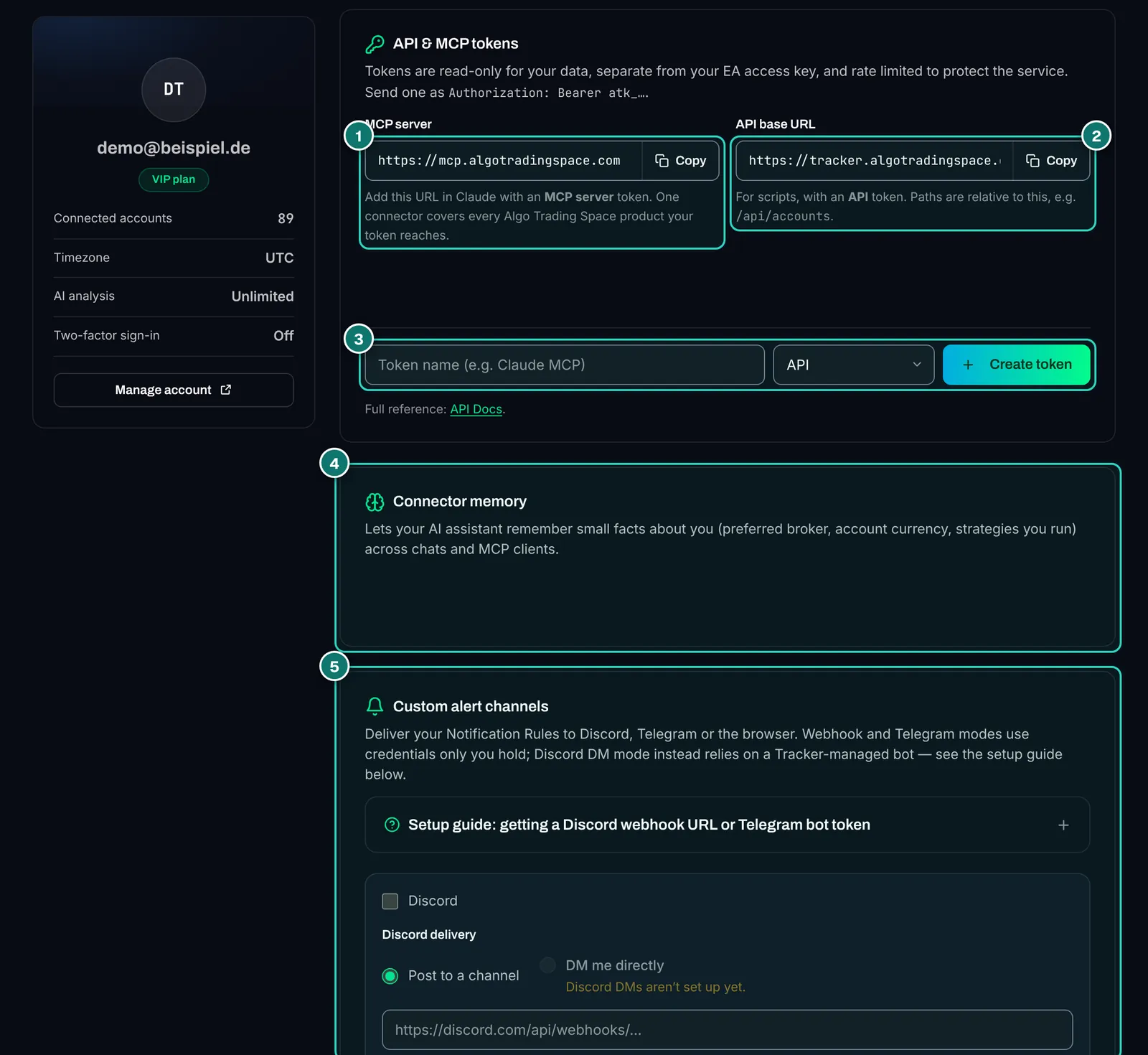
- 1. MCP server: this address goes into Claude or another MCP assistant. One connector covers every ATS product your token can reach.
- 2. API base URL for your own scripts with an API token.
- 3. Create a token: name and kind (API or MCP). According to the docs tokens are read-only and separate from the EA key.
- 4. Connector memory: the assistant may remember small facts such as your preferred broker or account currency.
- 5. Alert channels Discord (webhook or direct message), Telegram and browser, with a setup guide.
The MCP connection is what sets the tracker apart. With Pro you connect Claude or another assistant that speaks the Model Context Protocol and ask in plain words: which accounts are at risk right now, what happened last month, which EA makes money on which symbol? According to the product page the assistant gets 19 read-only tools; according to the API docs no tool can create, change, delete or acknowledge anything. The one exception on usage is the backtest-versus-live AI analysis, which costs an AI credit and asks first.
For the AI features you can also add your own key from an OpenAI-compatible provider (bring your own key); the analyses then run on your account instead of the ATS allowance. How much AI trading tools really deliver is discussed in our AI trading bot test.
On the phone
The web app is responsive; there is no separate app. On a phone the navigation moves into a menu, and today’s and the total result always sit at the top. Wide tables scroll sideways, which is a little fiddly for the account table and the performance summary.
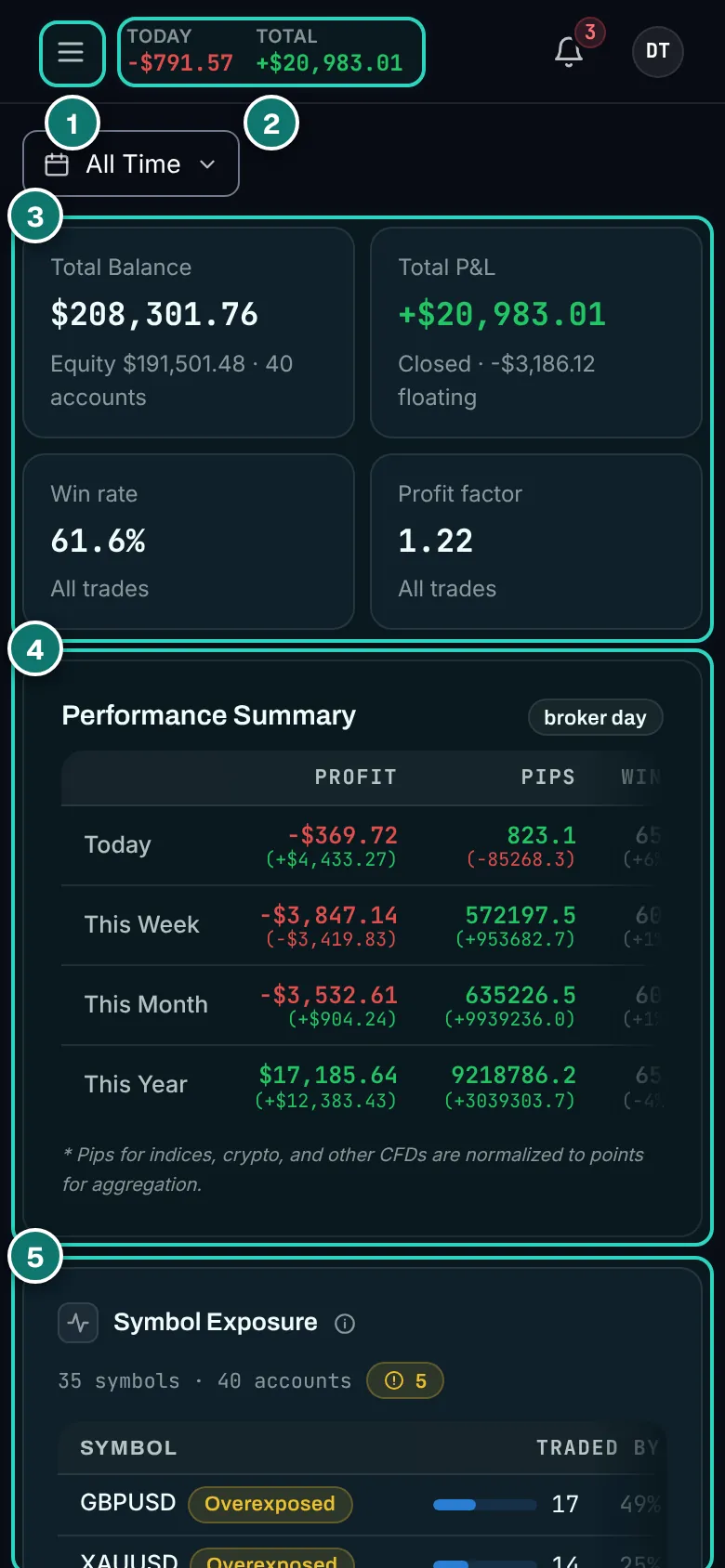
- 1. Menu with every area.
- 2. Today and total: the result of all accounts, always visible.
- 3. Total tiles in two columns.
- 4. Performance Summary, scrolls sideways.
- 5. Symbol Exposure with the account list below.
Strengths and weaknesses
In favour
- Results per magic number and per symbol, across brokers too: “which EA makes money?” takes two clicks
- Read-only EA instead of an investor password, no access to trades
- Drawdown as episodes, connection drops and uptime per terminal
- Prop-firm limits with open positions counted, the way the firms measure
- Server-side alerts every minute, even with the browser closed
- MCP server for Claude and other assistants, read-only, plus a documented API
- Free plan with five accounts, no time limit and no card
Against
- Interface in English only and very dense; beginners need time
- Key tools (Drawdown DNA, Screener, Incidents, MCP, backtest comparison, Discord/Telegram) need Pro
- Records only while MetaTrader runs; a sleeping PC means a gap
- Monitors, does not protect: no automatic close at a limit
- Custom rules can flood the alert history with thousands of entries
- No native app, wide tables are awkward on a phone
- No MetaTrader-independent proof like a verified Myfxbook profile
- Suits
- EA traders with several robots or accounts, prop-firm traders, portfolio builders, signal providers who want to share by link, and teams that look after accounts together.
- Does not suit
- Manual traders with one account who only want monthly returns, users of platforms other than MT4/MT5 (cTrader, NinjaTrader) and anyone who needs a publicly verified track record to market.
Pricing and plans
Per algotradingspace.com/software/account-tracker as of 2026-11-06. Every new account starts with 14 days of Pro and then moves to Free by itself, without deleting data.
| Feature | Free · €0 | Pro · €29/month |
|---|---|---|
| Connected accounts (MT4/MT5, live, demo, challenge, funded) | up to 5 | up to 100 |
| Balance, equity, drawdown, journal, results per EA and symbol | yes | yes |
| Prop-firm progress, reports, share links, in-app alerts | yes | yes |
| Claude and other assistants via MCP | no | yes |
| AI backtest comparison | no | yes |
| Screener | no | yes |
| Incidents (connection drops per account) | no | yes |
| Drawdown DNA | no | yes |
| Alerts to Discord, Telegram, browser; API tokens; workspaces | no | yes |
Members of the ATS VIP Club get everything in Pro with unlimited accounts; our test login was set up that way. On the TradeOS page ATS also lists a VIP+ bundle at €99 a month that includes every ATS tool at Pro.
If you connect more accounts than your plan allows, the extra ones are paused and keep their history. Accounts that send nothing for 30 days are removed after two dashboard notices; adding them again keeps their settings (vendor claims).
- 5 accounts free for good
- 14 days of Pro included
- no credit card
Alternatives to the Account Tracker
Placed neutrally by publicly known features; we did not test these tools in detail for this report. Check prices and features with each vendor.
| Tool | Connection | Strength | Limit |
|---|---|---|---|
| Myfxbook | Investor password or publisher EA | Well-known, publicly verified track records, large community | Less depth per EA, no prop-firm limits |
| FX Blue | Publisher EA for MT4/MT5 | Free, detailed statistics and live statements | Few portfolio and alert features for many accounts |
| MetaTrader report | built into the terminal | No extra tool, metrics per account | One account only, no alerts, no cross-broker view |
| Our portfolio analysis | free on AlgoVerdict | Combine accounts, see correlation and drawdown | No real-time monitoring, no alerts |
For analysing backtests rather than live accounts, QuantAnalyzer and StrategyQuant X are the well-known names; more on that in our Backtest Manager report. Our own portfolio analysis is a free AlgoVerdict tool and therefore not reviewed.
Privacy and security
The EA only reads and sends no password; according to the vendor, account number, name, server and VPS never appear in shared links. Shared links can show percentages instead of amounts, expire or be revoked, and be embedded on your own website. Two-factor sign-in is available; switch it on.
One point you should know: when first opened, our VIP login showed a dialog saying some trading statistics may appear on ATS’s public “VIP Club Trading Portfolios” page, with a Discord username and a country flag instead of a real name. We did not accept the dialog. Whether Free and Pro users see the same dialog we could not check; read it before you accept and ask support if in doubt.
What we checked and what we did not
Tested on 2026-11-06 in the operator’s tracker account (VIP plan, 40 connected MT4 and MT5 accounts at six brokers). We only read: no setting changed, no alert acknowledged, no key regenerated, no Screener run started.
Working were the overview, the account view with all eight tabs, the Screener form, Analytics with Strategy Performance, Capital Allocation and Reports, System Health, Alerts, the settings and the API documentation. Not loading in our test login were Workspaces, the list of registered terminals, the token list and the connector memory setting; according to ATS these only work in a regular browser session. Statements about them come from the product page and are labelled as such.
All screenshots are real and edited: amounts and percentages are replaced with sample values, account numbers, list names, servers and e-mail addresses altered, chart axes without figures. No returns can be read from the images, and AlgoVerdict does not show live returns as a matter of principle.
Trying the Account Tracker
Our interests: Partner link: if you order through it we earn a commission, at no extra cost to you. The operator of AlgoVerdict is connected to ATS; that is why there is no grade here.
Free plan with 14 days of Pro
Five accounts free for good, no card. After 14 days the login moves back to Free by itself.
- 5 accounts free for good
- 14 days of Pro included
- no credit card
Frequently asked questions about the Account Tracker
Is the Account Tracker free?
Yes, for up to five MT4 or MT5 accounts with no time limit and no card. Every new account starts with 14 days of Pro. Pro costs €29 a month for up to 100 accounts and unlocks Drawdown DNA, the Screener, MCP and the backtest comparison, among others (as of 2026-11-06).
Can the ATS Terminal EA open trades or see my password?
No. The EA reads the account through MetaTrader’s own functions, never opens, changes or closes a trade and sends neither the master nor the investor password. Your EAs and manual orders keep running independently.
Do I need a VPS?
Not strictly, but the EA only reports while MetaTrader is running and connected. A home PC that sleeps creates gaps. On a forex VPS the auto-discover script installs the EA on every terminal and re-attaches it after restarts.
Does the tracker work with prop-firm challenges?
Yes. You enter profit target, daily loss and overall loss once, and open positions count. The tracker does not enforce the limits or close trades, though; keep your firm’s own rules at hand.
How does Claude read my accounts?
With Pro you create an MCP token in the settings and add the MCP address in Claude or another MCP assistant. The assistant can then answer questions about your own accounts but cannot trade or change anything.
How does it differ from Myfxbook and FX Blue?
All three analyse MetaTrader accounts. The Account Tracker is built for EA portfolios: results per magic number, drawdown episodes, connection monitoring, prop-firm limits, backtest comparison and AI access. Myfxbook is better known for publicly verified track records.
Can I share my results?
Yes, on every plan: as a read-only link with percentages or amounts, with an expiry date, revocable or embedded on your own website. According to the vendor, account number, name, server and VPS are never published.
Why does AlgoVerdict not grade the Account Tracker?
Because Algo Trading Space is our partner and the operator of AlgoVerdict is connected to ATS. On top of that, nothing in our trading software section is graded, not even tools with no link to us.
Editorial report, not investment advice. Features checked on 2026-11-06, prices per algotradingspace.com on the same day. Trading forex and CFDs is risky; a tracker shows what happened and makes no forecasts.